I came across this free foliage font download a few months ago, and I’ve been so excited to share it with you! If you love creating with your Cricut, this is one font you’ll want to add to your collection.
Yes, this is a font! More specifically, it’s called a dingbat font. Rather than being made up of letters and numbers, a dingbat font is a collection of little graphics and illustrations that you can access simply by typing different characters.
The font I’m sharing today is called Wildplants, and it has so many beautiful foliage designs to choose from. It’s free to download for personal use, making it a lovely resource for all kinds of paper projects.
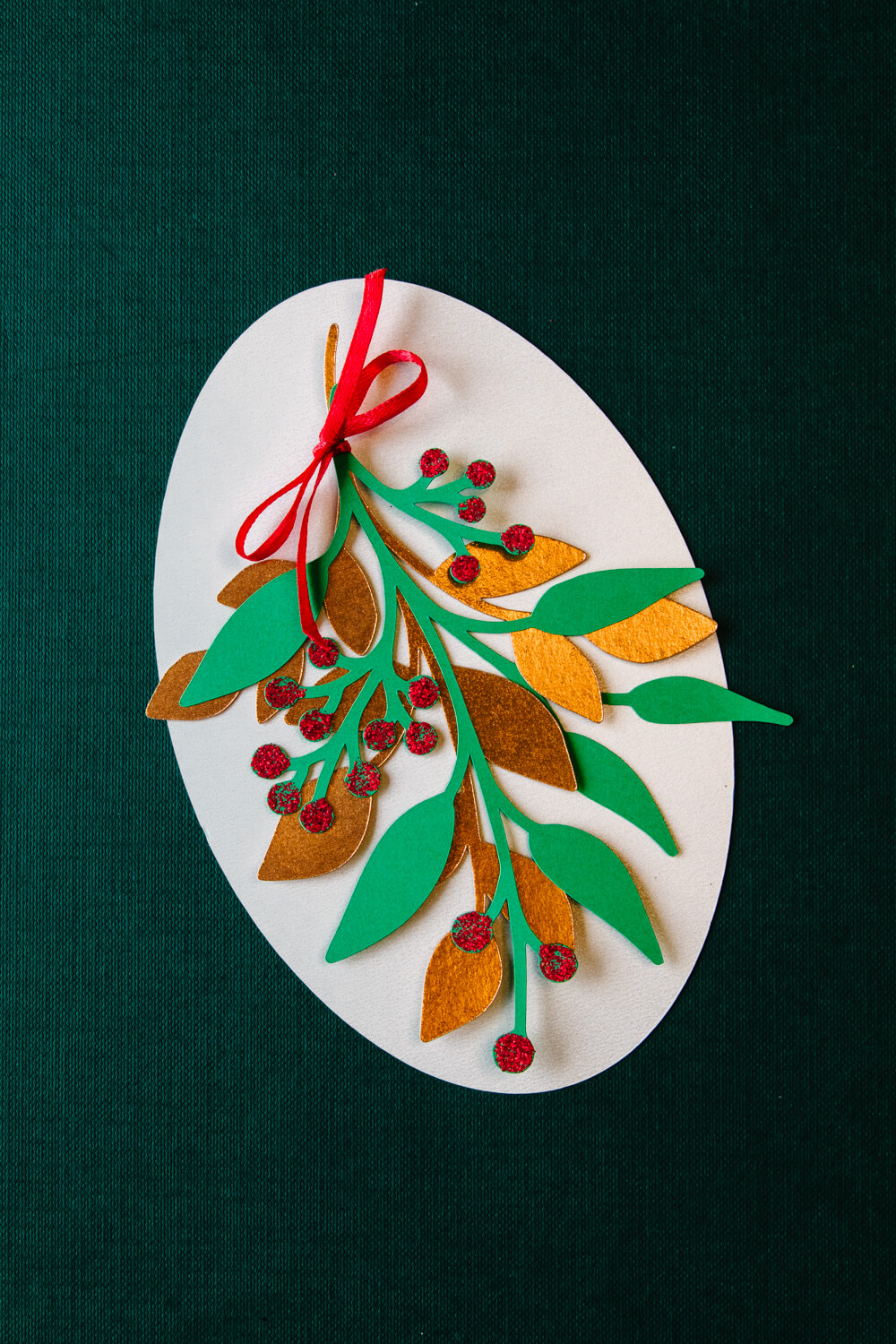
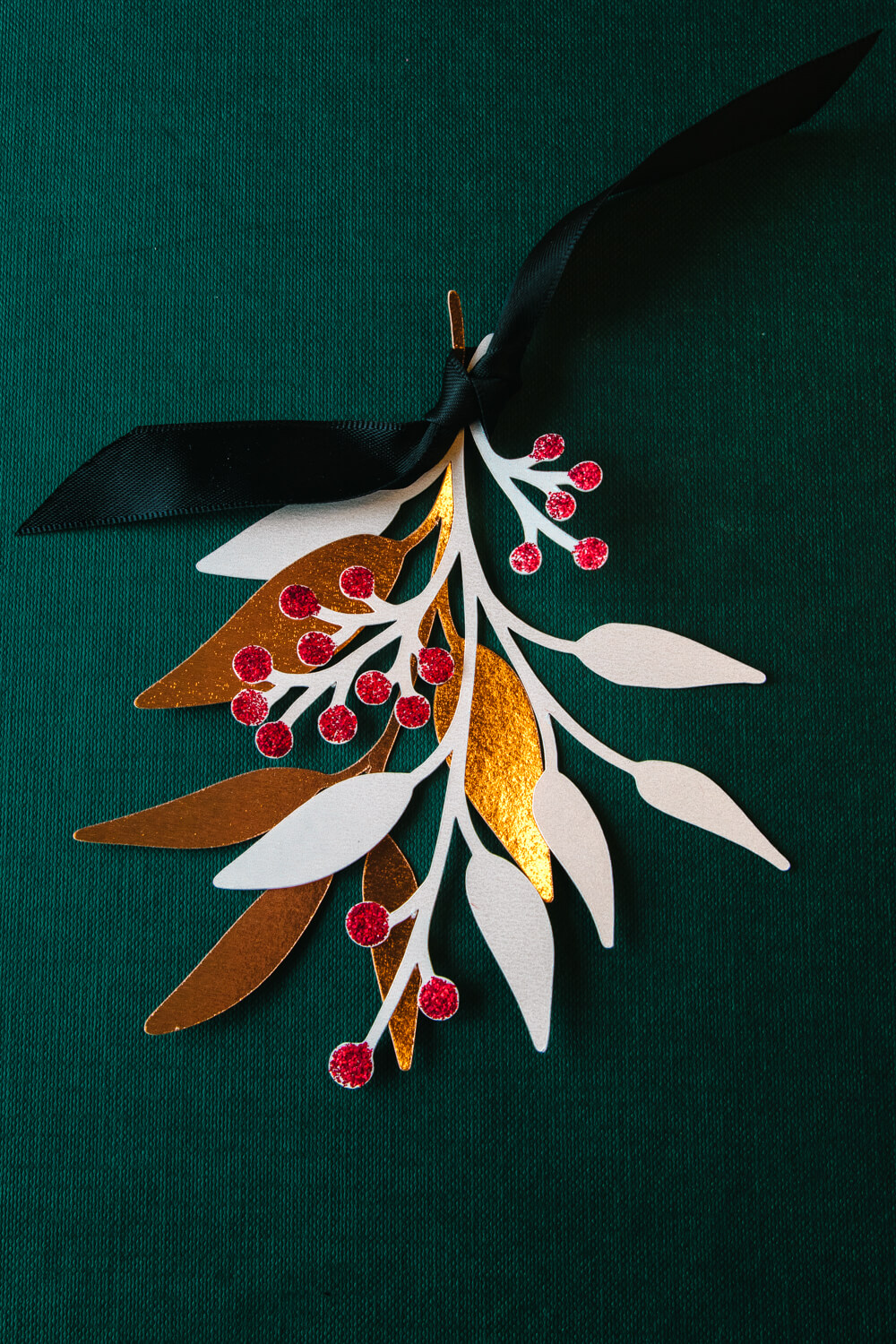
Creating a Winter Foliage Gift Topper
For my first project using this font, I decided to create some pretty winter foliage gift toppers. I chose to cut out a few of the different foliage designs and layer them together. The size I cut the designs out at were five inches in height.
I added glitter to the rounded ends of the branches to create the look of winter berries and finished with a simple ribbon. Learn how I work with glitter mess free from my tutorial here: Top Tips for Crafting with Glitter
I love how a few simple shapes and materials can come together to create something so special!
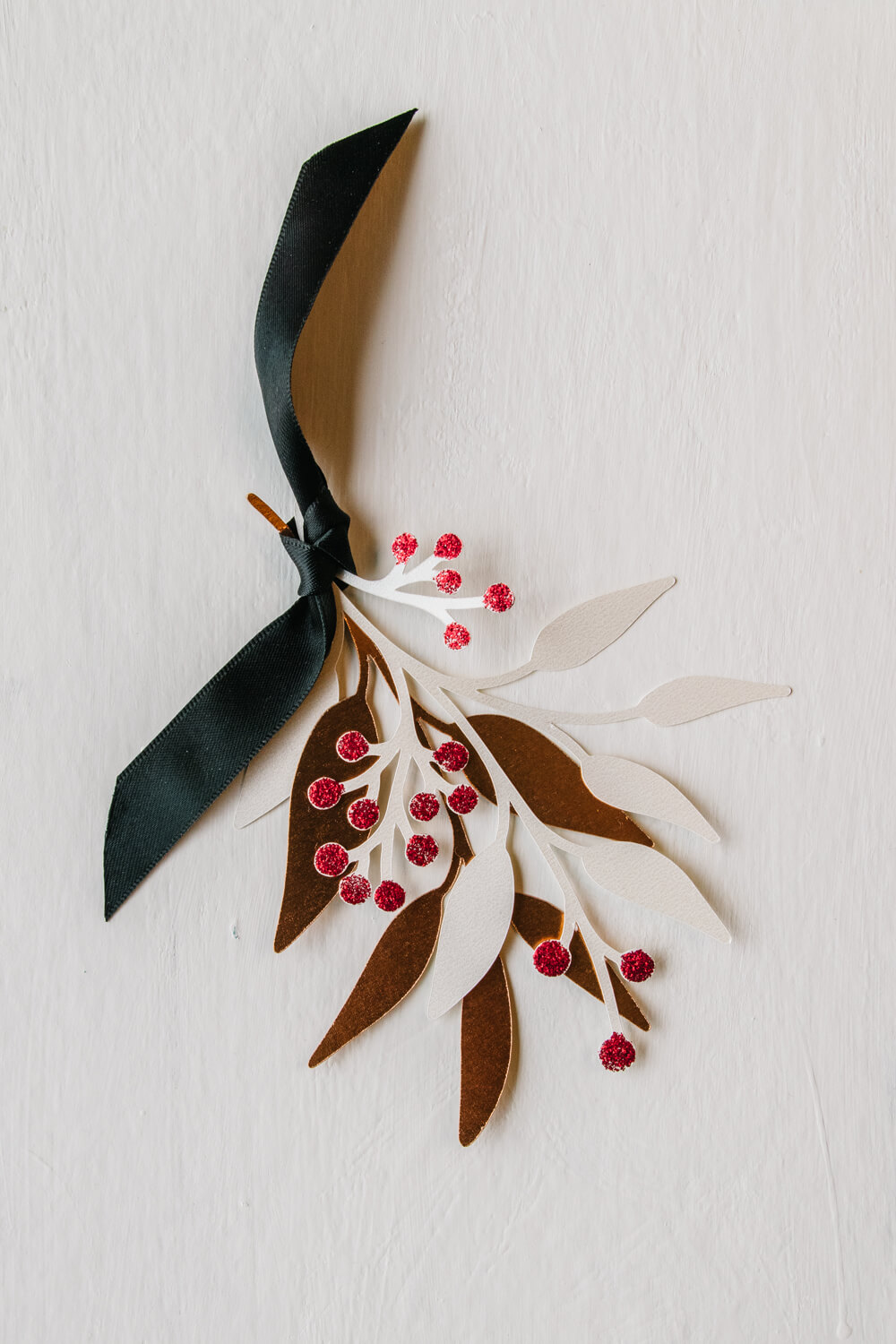
How to Use the Wildplants Font in Cricut Design Space
One of the best things about using a dingbat font is that you can keep it installed on your computer and access the graphics whenever you need them. It’s such a convenient way to add a quick embellishment to almost any Cricut project.
If you haven’t uploaded a font to Cricut Design Space before, you can follow my tutorial here: How to Upload Free Fonts to Cricut Design Space
Once you’ve installed the Wildplants font, open Cricut Design Space and select the Text tool. Choose Wildplants from your font list and type the character corresponding to the foliage graphic you’d like to use.
You’ll be able to browse through the different designs and choose your favourites!
A little Cricut Design Space tip: Some of the foliage designs have small openings within the leaves. If you’d prefer a solid leaf shape, select your graphic and open the Contour tool at the bottom of the Layers panel. You can use Contour to hide the inner cutouts, leaving you with a simple, solid silhouette.
This is especially helpful when working with glitter cardstock or creating smaller embellishments.
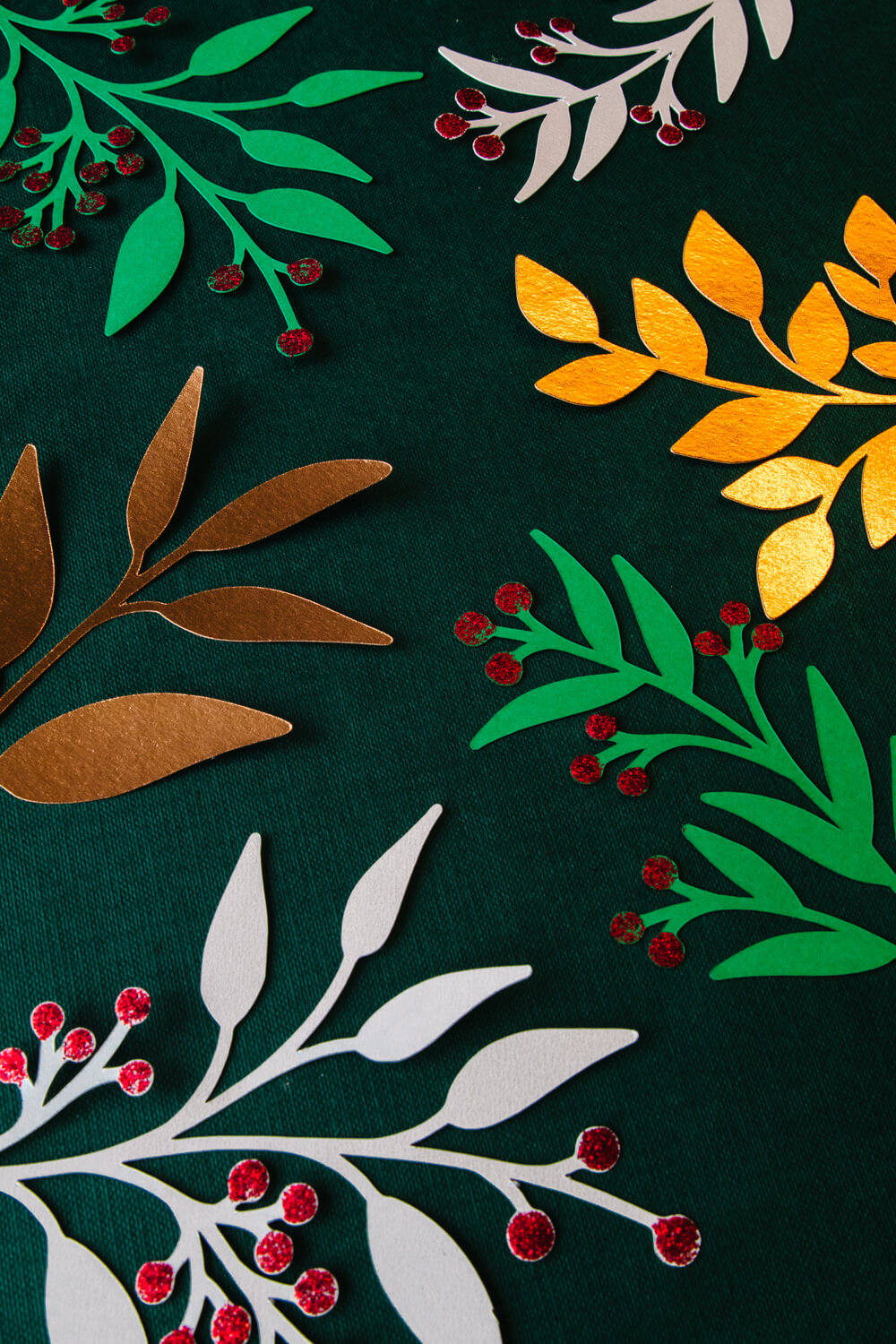
More Ways to Use This Free Foliage Font
There are so many possibilities with this font! Beyond my little winter foliage gift topper, I can imagine using these graphics for:
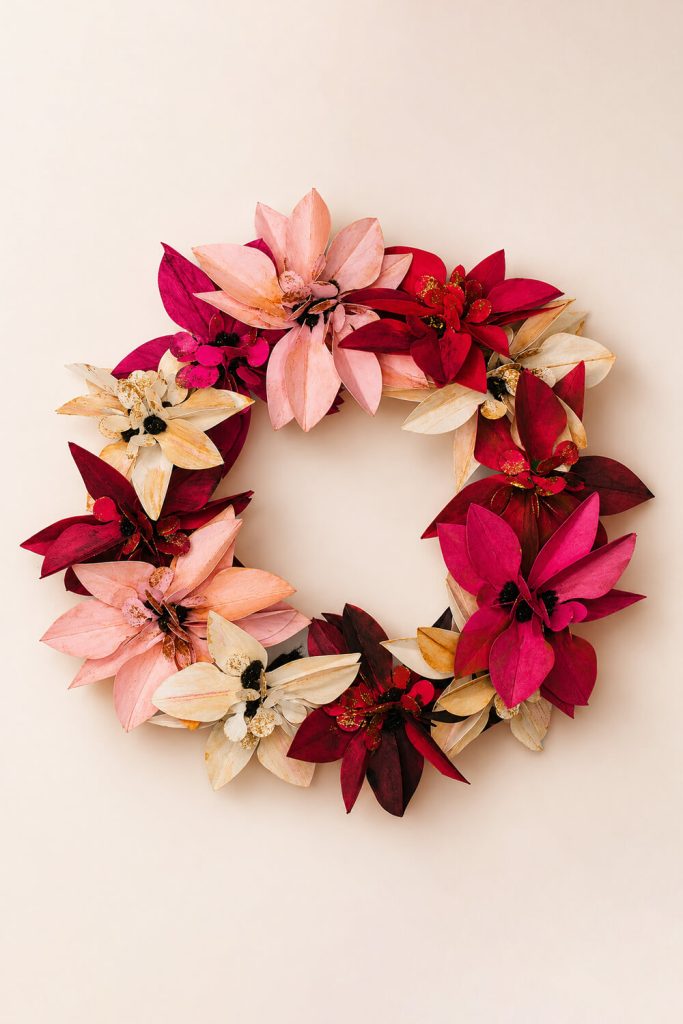
- Wreaths and garlands: Combine several foliage designs to create a beautiful layered wreath or garland.
- Gift tags: Add a little sprig of greenery to your Christmas gift tags.
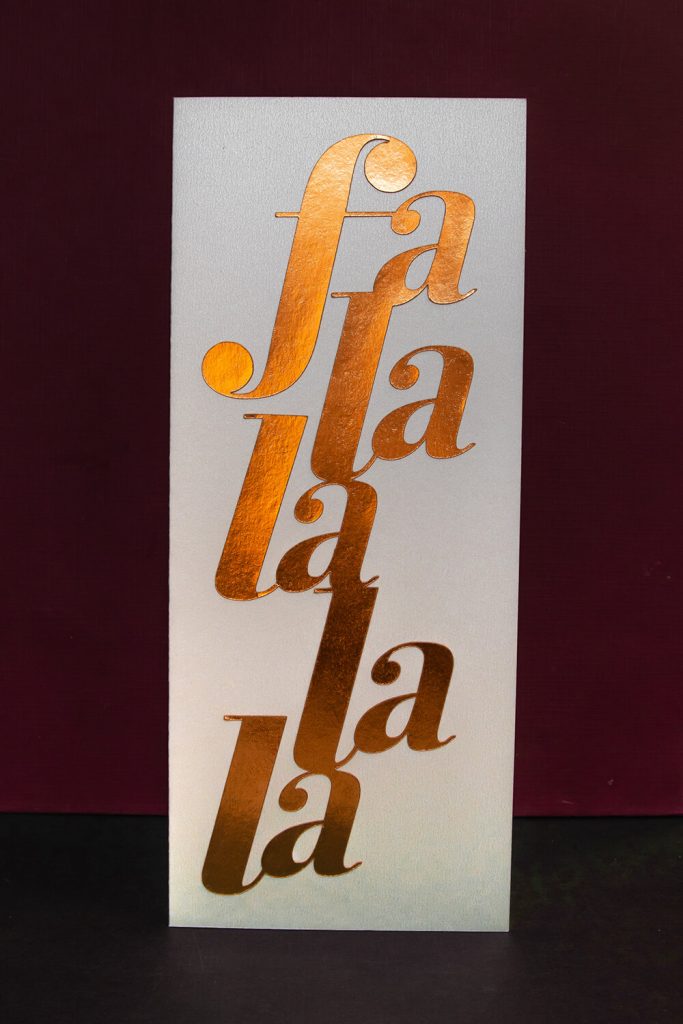
- Card fronts: Use the foliage as a decorative accent around a sentiment or as the focal point of a handmade card.
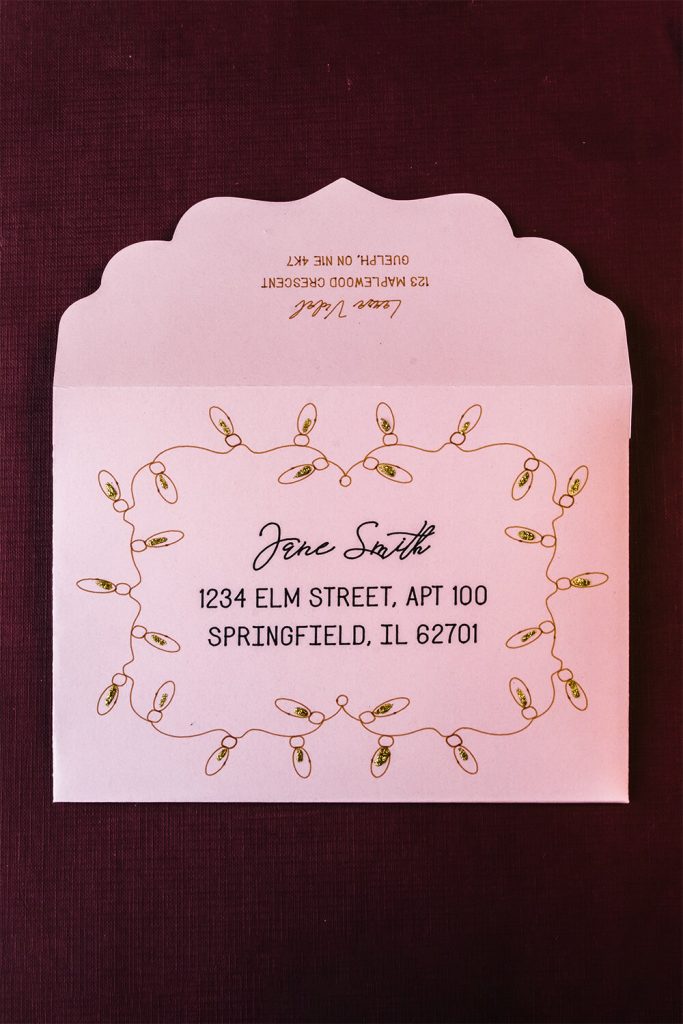
- Envelope embellishments: Add a little greenery to envelope flaps or envelope liners.
- Scrapbooking: Use the different leaves and branches to embellish seasonal scrapbook layouts.
- Holiday decorations: Layer different foliage shapes with glitter cardstock to create dimensional Christmas decorations.
I especially love having resources like this ready to go in Cricut Design Space. Sometimes all a project needs is one little embellishment to make it feel complete!
Download the Free Wildplants Font
Ready to add this foliage font to your collection? You can download Wildplants for free from DaFont. The font is available free for personal use.
Download the Wildplants Font from DaFont
I hope you have as much fun playing with this font as I did. I’d love to see what you create with it!